

Defining AI workflows
AI workflows typically require more than just a model call. They need pre- and post-processing steps like retrieving context, managing session history, reformatting inputs, validating outputs, or combining multiple model responses.
A flow is a special Genkit function that wraps your AI logic to provide:
- Type-safe inputs and outputs: Define schemas using Zod for static and runtime validation
- Streaming support: Stream partial responses or custom data
- Developer UI integration: Test and debug flows with visual traces
- Easy deployment: Deploy as HTTP endpoints to Cloud Functions for Firebase or any platform
Flows are lightweight. They’re written like regular functions with minimal abstraction.
Defining and calling flows
Section titled “Defining and calling flows”In its simplest form, a flow just wraps a function. The following example wraps a function that makes a model generation request:
import { googleAI } from '@genkit-ai/google-genai';import { genkit, z } from 'genkit';
const ai = genkit({  plugins: [googleAI()],});
export const menuSuggestionFlow = ai.defineFlow(  {    name: 'menuSuggestionFlow',    inputSchema: z.object({ theme: z.string() }),    outputSchema: z.object({ menuItem: z.string() }),  },  async ({ theme }) => {    const { text } = await ai.generate({      model: googleAI.model('gemini-2.5-flash'),      prompt: `Invent a menu item for a ${theme} themed restaurant.`,    });    return { menuItem: text };  },);
Just by wrapping your generate calls like this, you add some functionality: doing so lets you run the flow from the Genkit CLI and from the developer UI, and is a requirement for several of Genkit’s features, including deployment and observability (later sections discuss these topics).
Input and output schemas
Section titled “Input and output schemas”One of the most important advantages Genkit flows have over directly calling a model API is type safety of both inputs and outputs. When defining flows, you can define schemas for them.
You can define schemas using Zod, in much the same way as you define the
output schema of a generate() call; however, unlike with generate(), you can
also specify an input schema.
While it’s not mandatory to wrap your input and output schemas in z.object(), it’s considered best practice for these reasons:
- Better developer experience: Wrapping schemas in objects provides a better experience in the Developer UI by giving you labeled input fields.
- Future-proof API design: Object-based schemas allow for easy extensibility in the future. You can add new fields to your input or output schemas without breaking existing clients, which is a core principle of robust API design.
All examples in this documentation use object-based schemas to follow these best practices.
Here’s a refinement of the last example, which defines a flow that takes a string as input and outputs an object:
import { z } from 'genkit';
const MenuItemSchema = z.object({  dishname: z.string(),  description: z.string(),});
export const menuSuggestionFlowWithSchema = ai.defineFlow(  {    name: 'menuSuggestionFlow',    inputSchema: z.object({ theme: z.string() }),    outputSchema: MenuItemSchema,  },  async ({ theme }) => {    const { output } = await ai.generate({      model: googleAI.model('gemini-2.5-flash'),      prompt: `Invent a menu item for a ${theme} themed restaurant.`,      output: { schema: MenuItemSchema },    });    if (output == null) {      throw new Error("Response doesn't satisfy schema.");    }    return output;  },);
Note that the schema of a flow does not necessarily have to line up with the schema of the model generation calls within the flow (in fact, a flow might not even contain model calls). Here’s a variation of the example that uses the structured output to format a simple string, which the flow returns.
export const menuSuggestionFlowMarkdown = ai.defineFlow( { name: 'menuSuggestionFlow', inputSchema: z.object({ theme: z.string() }), outputSchema: z.object({ formattedMenuItem: z.string() }), }, async ({ theme }) => { const { output } = await ai.generate({ model: googleAI.model('gemini-2.5-flash'), prompt: `Invent a menu item for a ${theme} themed restaurant.`, output: { schema: MenuItemSchema }, }); if (output == null) { throw new Error("Response doesn't satisfy schema."); } return { formattedMenuItem: `**${output.dishname}**: ${output.description}`, }; },);Calling flows
Section titled “Calling flows”Once you’ve defined a flow, you can call it from your code:
const { text } = await menuSuggestionFlow({ theme: 'bistro' });The argument to the flow must conform to the input schema.
If you defined an output schema, the flow response will conform to it. For
example, if you set the output schema to MenuItemSchema, the flow output will
contain its properties:
const { dishname, description } = await menuSuggestionFlowWithSchema({ theme: "bistro",});Streaming flows
Section titled “Streaming flows”Flows support streaming using an interface similar to the model generation streaming interface. Streaming is useful when your flow generates a large amount of output, because you can present the output to the user as it’s being generated, which improves the perceived responsiveness of your app. As a familiar example, chat-based LLM interfaces often stream their responses to the user as they are generated.
Here’s an example of a flow that supports streaming:
export const menuSuggestionStreamingFlow = ai.defineFlow(  {    name: 'menuSuggestionFlow',    inputSchema: z.object({ theme: z.string() }),    streamSchema: z.string(),    outputSchema: z.object({ theme: z.string(), menuItem: z.string() }),  },  async ({ theme }, { sendChunk }) => {    const { stream, response } = ai.generateStream({      model: googleAI.model('gemini-2.5-flash'),      prompt: `Invent a menu item for a ${theme} themed restaurant.`,    });
    for await (const chunk of stream) {      // Here, you could process the chunk in some way before sending it to      // the output stream via sendChunk(). In this example, we output      // the text of the chunk, unmodified.      sendChunk(chunk.text);    }
    const { text: menuItem } = await response;
return { theme, menuItem, }; },);- The
streamSchemaoption specifies the type of values your flow streams. This does not necessarily need to be the same type as theoutputSchema, which is the type of the flow’s complete output. - The second parameter to your flow definition is called
sideChannel. It provides features such as request context and thesendChunkcallback. ThesendChunkcallback takes a single parameter, of the type specified bystreamSchema. Whenever data becomes available within your flow, send the data to the output stream by calling this function.
In the above example, the values streamed by the flow are directly coupled to the values streamed by the model generation call inside the flow. Although this is often the case, it doesn’t have to be: you can output values to the stream using the callback as often as is useful for your flow.
Calling streaming flows
Section titled “Calling streaming flows”Streaming flows are also callable, but they immediately return a response object rather than a promise:
const response = menuSuggestionStreamingFlow.stream({ theme: 'Danube' });The response object has a stream property, which you can use to iterate over the streaming output of the flow as it’s generated:
for await (const chunk of response.stream) { console.log('chunk', chunk);}You can also get the complete output of the flow, as you can with a non-streaming flow:
const output = await response.output;Note that the streaming output of a flow might not be the same type as the
complete output; the streaming output conforms to streamSchema, whereas the
complete output conforms to outputSchema.
Running flows from the command line
Section titled “Running flows from the command line”You can run flows from the command line using the Genkit CLI tool:
genkit flow:run menuSuggestionFlow '{"theme": "French"}'For streaming flows, you can print the streaming output to the console by adding
the -s flag:
genkit flow:run menuSuggestionFlow '{"theme": "French"}' -sRunning a flow from the command line is useful for testing a flow, or for running flows that perform tasks needed on an ad hoc basis—for example, to run a flow that ingests a document into your vector database.
Debugging flows
Section titled “Debugging flows”One of the advantages of encapsulating AI logic within a flow is that you can test and debug the flow independently from your app using the Genkit developer UI.
To start the developer UI, run the following command from your project directory:
genkit start -- tsx --watch src/your-code.tsFrom the Run tab of developer UI, you can run any of the flows defined in your project:
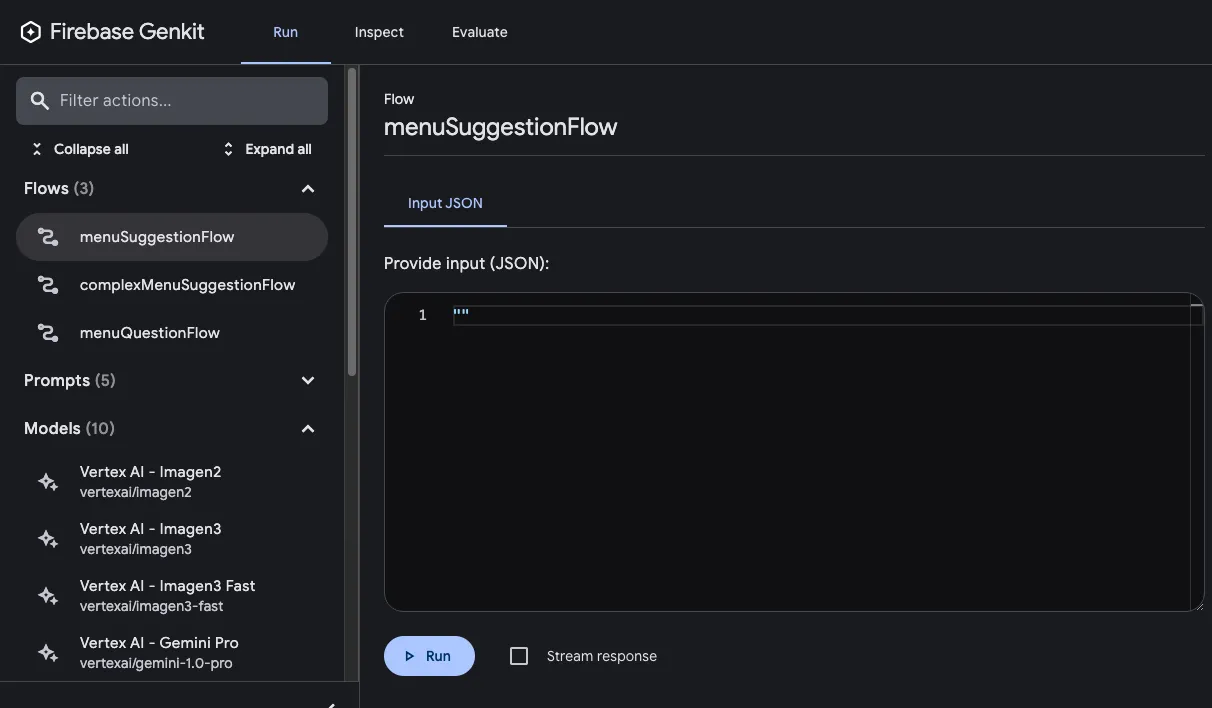
After you’ve run a flow, you can inspect a trace of the flow invocation by either clicking View trace or looking on the Inspect tab.
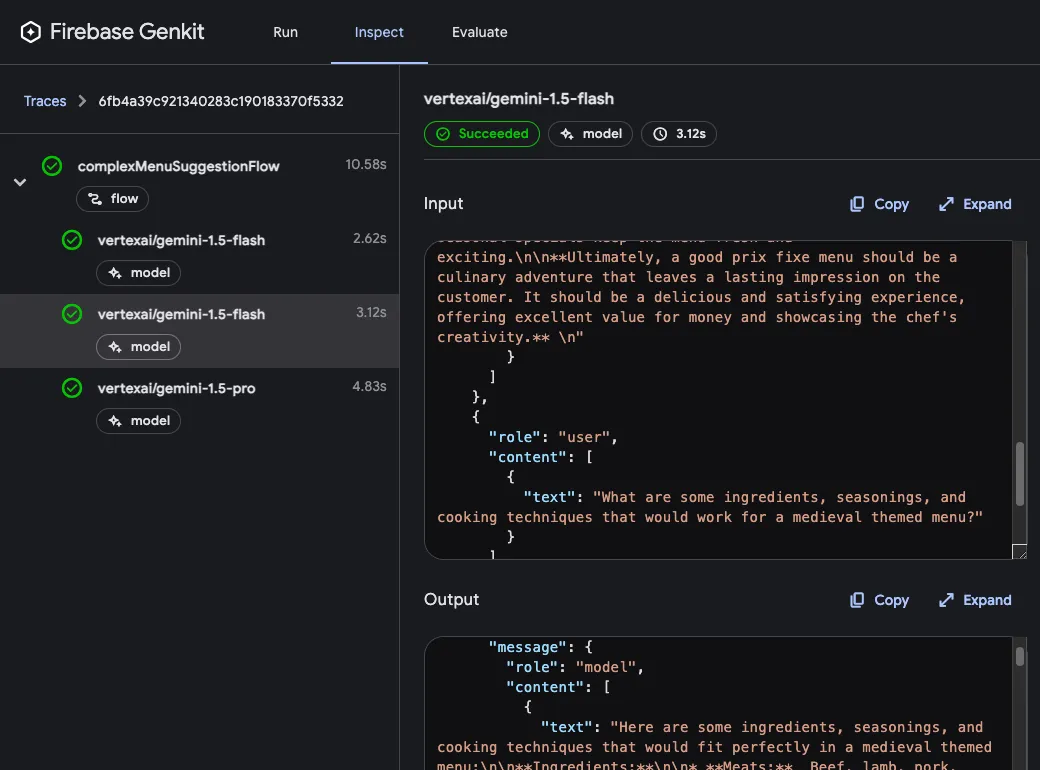
In the trace viewer, you can see details about the execution of the entire flow, as well as details for each of the individual steps within the flow. For example, consider the following flow, which contains several generation requests:
const PrixFixeMenuSchema = z.object({  starter: z.string(),  soup: z.string(),  main: z.string(),  dessert: z.string(),});
export const complexMenuSuggestionFlow = ai.defineFlow(  {    name: 'complexMenuSuggestionFlow',    inputSchema: z.object({ theme: z.string() }),    outputSchema: PrixFixeMenuSchema,  },  async ({ theme }): Promise<z.infer<typeof PrixFixeMenuSchema>> => {    const chat = ai.chat({ model: googleAI.model('gemini-2.5-flash') });    await chat.send('What makes a good prix fixe menu?');    await chat.send(      "What are some ingredients, seasonings, and cooking techniques that " +        `would work for a ${theme} themed menu?`,    );    const { output } = await chat.send({      prompt:        `Based on our discussion, invent a prix fixe menu for a ${theme} ` +        "themed restaurant.",      output: {        schema: PrixFixeMenuSchema,      },    });    if (!output) {      throw new Error('No data generated.');    }    return output;  },);
When you run this flow, the trace viewer shows you details about each generation request including its output:
Flow steps
Section titled “Flow steps”In the last example, you saw that each generate() call showed up as a separate
step in the trace viewer. Each of Genkit’s fundamental actions show up as
separate steps of a flow:
generate()Chat.send()embed()index()retrieve()
If you want to include code other than the above in your traces, you can do so
by wrapping the code in a run() call. You might do this for calls to
third-party libraries that are not Genkit-aware, or for any critical section of
code.
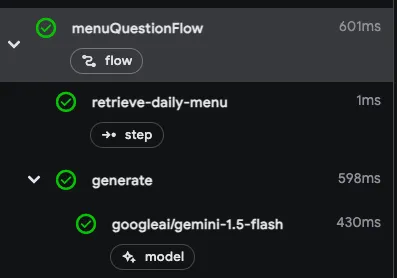
For example, here’s a flow with two steps: the first step retrieves a menu using
some unspecified method, and the second step includes the menu as context for a
generate() call.
export const menuQuestionFlow = ai.defineFlow(  {    name: 'menuQuestionFlow',    inputSchema: z.object({ question: z.string() }),    outputSchema: z.object({ answer: z.string() }),  },  async ({ question }): Promise<{ answer: string }> => {    const menu = await ai.run(      "retrieve-daily-menu",      async (): Promise<string> => {        // Retrieve today's menu. (This could be a database access or simply        // fetching the menu from your website.)
        // ...
        return menu;      },    );    const { text } = await ai.generate({      model: googleAI.model('gemini-2.5-flash'),      system: "Help the user answer questions about today's menu.",      prompt: question,      docs: [{ content: [{ text: menu }] }],    });    return { answer: text };  },);
Because the retrieval step is wrapped in a run() call, it’s included as a step
in the trace viewer:
Deploying flows
Section titled “Deploying flows”You can deploy your flows directly as web API endpoints, ready for you to call from your app clients. Deployment is discussed in detail on several other pages, but this section gives brief overviews of your deployment options.
Cloud Functions for Firebase
Section titled “Cloud Functions for Firebase”To deploy flows with Cloud Functions for Firebase, use the onCallGenkit
feature of firebase-functions/https. onCallGenkit wraps your flow in a
callable function. You may set an auth policy and configure App Check.
import { hasClaim, onCallGenkit } from 'firebase-functions/https';import { defineSecret } from 'firebase-functions/params';
const apiKey = defineSecret('GOOGLE_AI_API_KEY');
const menuSuggestionFlow = ai.defineFlow(  {    name: 'menuSuggestionFlow',    inputSchema: z.object({ theme: z.string() }),    outputSchema: z.object({ menuItem: z.string() }),  },  async ({ theme }) => {    // ...    return { menuItem: 'Generated menu item would go here' };  },);
export const menuSuggestion = onCallGenkit(  {    secrets: [apiKey],    authPolicy: hasClaim('email_verified'),  },  menuSuggestionFlow,);
Express.js
Section titled “Express.js”To deploy flows using any Node.js hosting platform, such as Cloud Run, define
your flows using defineFlow() and then call startFlowServer():
import { startFlowServer } from '@genkit-ai/express';
export const menuSuggestionFlow = ai.defineFlow(  {    name: 'menuSuggestionFlow',    inputSchema: z.object({ theme: z.string() }),    outputSchema: z.object({ result: z.string() }),  },  async ({ theme }) => {    // ...  },);
startFlowServer({  flows: [menuSuggestionFlow],});
By default, startFlowServer will serve all the flows defined in your codebase
as HTTP endpoints (for example, http://localhost:3400/menuSuggestionFlow).
If needed, you can customize the flows server to serve a specific list of flows, as shown below. You can also specify a custom port (it will use the PORT environment variable if set) or specify CORS settings.
export const flowA = ai.defineFlow(  {    name: 'flowA',    inputSchema: z.object({ subject: z.string() }),    outputSchema: z.object({ response: z.string() }),  },  async ({ subject }) => {    // ...    return { response: 'Generated response would go here' };  },);
export const flowB = ai.defineFlow(  {    name: 'flowB',    inputSchema: z.object({ subject: z.string() }),    outputSchema: z.object({ response: z.string() }),  },  async ({ subject }) => {    // ...    return { response: 'Generated response would go here' };  },);
startFlowServer({  flows: [flowB],  port: 4567,  cors: {    origin: '*',  },});
Calling deployed flows
Section titled “Calling deployed flows”Once your flow is deployed, you can call it with a POST request:
curl -X POST "http://localhost:3400/menuSuggestionFlow" \ -H "Content-Type: application/json" -d '{"data": {"theme": "banana"}}'For streaming responses, you can add the Accept: text/event-stream header:
curl -X POST "http://localhost:3400/menuSuggestionFlow" \ -H "Content-Type: application/json" \ -H "Accept: text/event-stream" \ -d '{"data": {"theme": "banana"}}'You can also use the Genkit web client library to call flows from web applications. See Accessing flows from the client for detailed examples of using the runFlow() and streamFlow() functions.
Learn more about deployment
Section titled “Learn more about deployment”For detailed deployment instructions and platform-specific guides, see: