

Developer tools
Genkit provides two key developer tools:
- A CLI for command-line operations
- A local web app, called the Developer UI, that interfaces with your Genkit app for interactive testing and development
Install the CLI
Section titled “Install the CLI”npm install -g genkit-cliOn macOS or Linux run:
curl -sL cli.genkit.dev | bashOn Windows download the binary from: here
More details can be found at https://cli.genkit.dev
Command line interface (CLI)
Section titled “Command line interface (CLI)”The CLI supports various commands to facilitate working with Genkit projects:
genkit start -- <command to run your code>: Start the developer UI and connect it to a running code process.genkit flow:run <flowName>: Run a specified flow.genkit eval:flow <flowName>: Evaluate a specific flow.genkit trace:list: List traces.genkit trace:get <traceId>: Get a trace by ID.
For a full list of commands, use:
genkit --helpGenkit Developer UI
Section titled “Genkit Developer UI”The Genkit Developer UI is a local web app that lets you interactively work with models, flows, prompts, and other elements in your Genkit project.
The Developer UI is able to identify what Genkit components you have defined in your code by attaching to a running code process.
To start the UI, run the following command:
genkit start -- <command to run your code>The <command to run your code> will vary based on your project’s setup and
the file you want to execute. Here are some examples:
# Running a typical development servergenkit start -- npm run dev
# Running a TypeScript file directlygenkit start -- npx tsx --watch src/index.ts
# Running a JavaScript file directlygenkit start -- node --watch src/index.js
Including the --watch option will enable the Developer UI to notice and
reflect saved changes to your code without needing to restart it.
After running the command, you will get an output like the following:
Telemetry API running on http://localhost:4033Genkit Developer UI: http://localhost:4000Open the local host address for the Genkit Developer UI in your browser to view it. You can also open it in the VS Code simple browser to view it alongside your code.
Alternatively, you can use add the -o option to the start command to
automatically open the Developer UI in your default browser tab.
genkit start -o -- <command to run your code>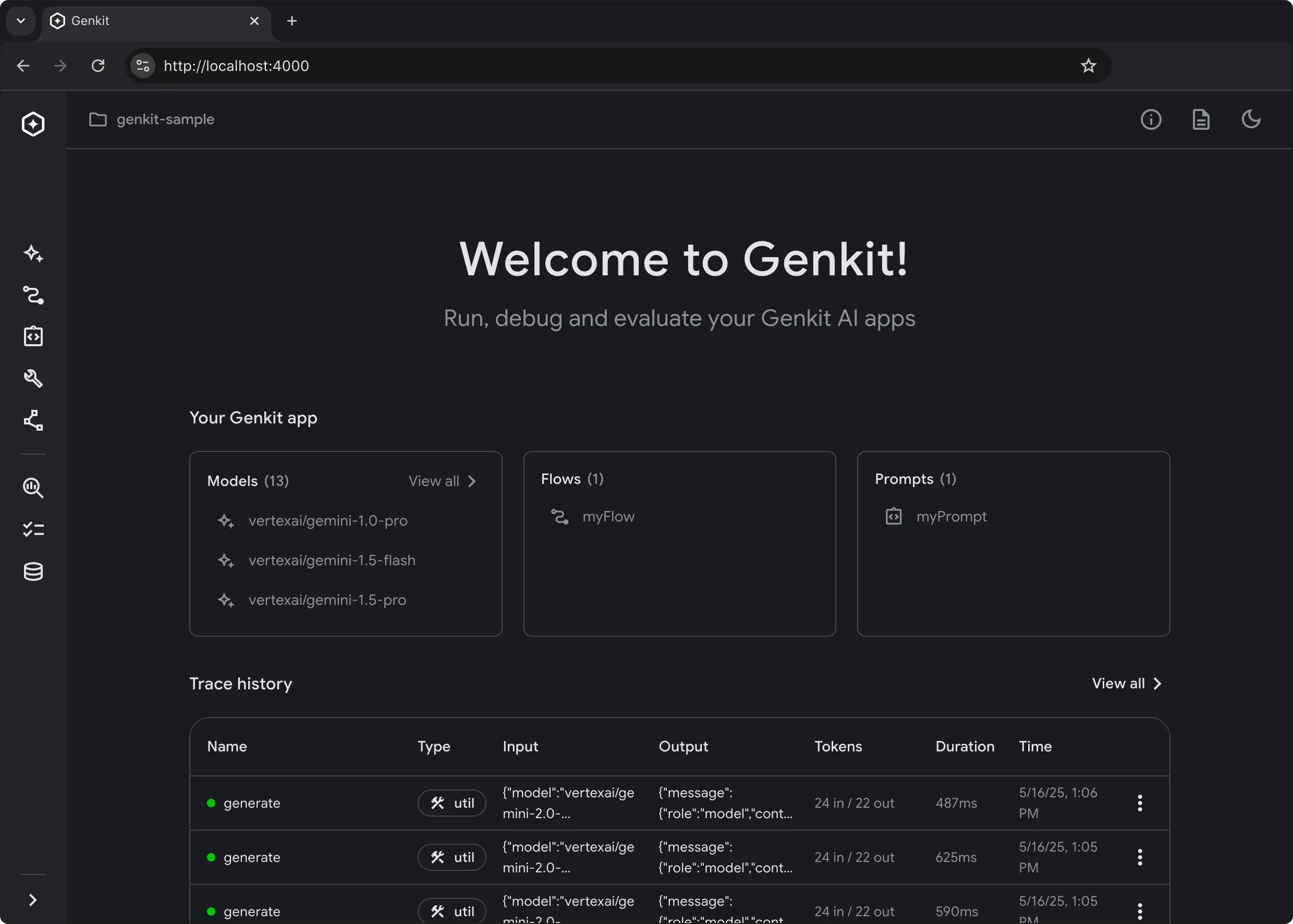
The Developer UI has action runners for flow, prompt, model, tool,
retriever, indexer, embedder and evaluator based on the components
you have defined in your code.
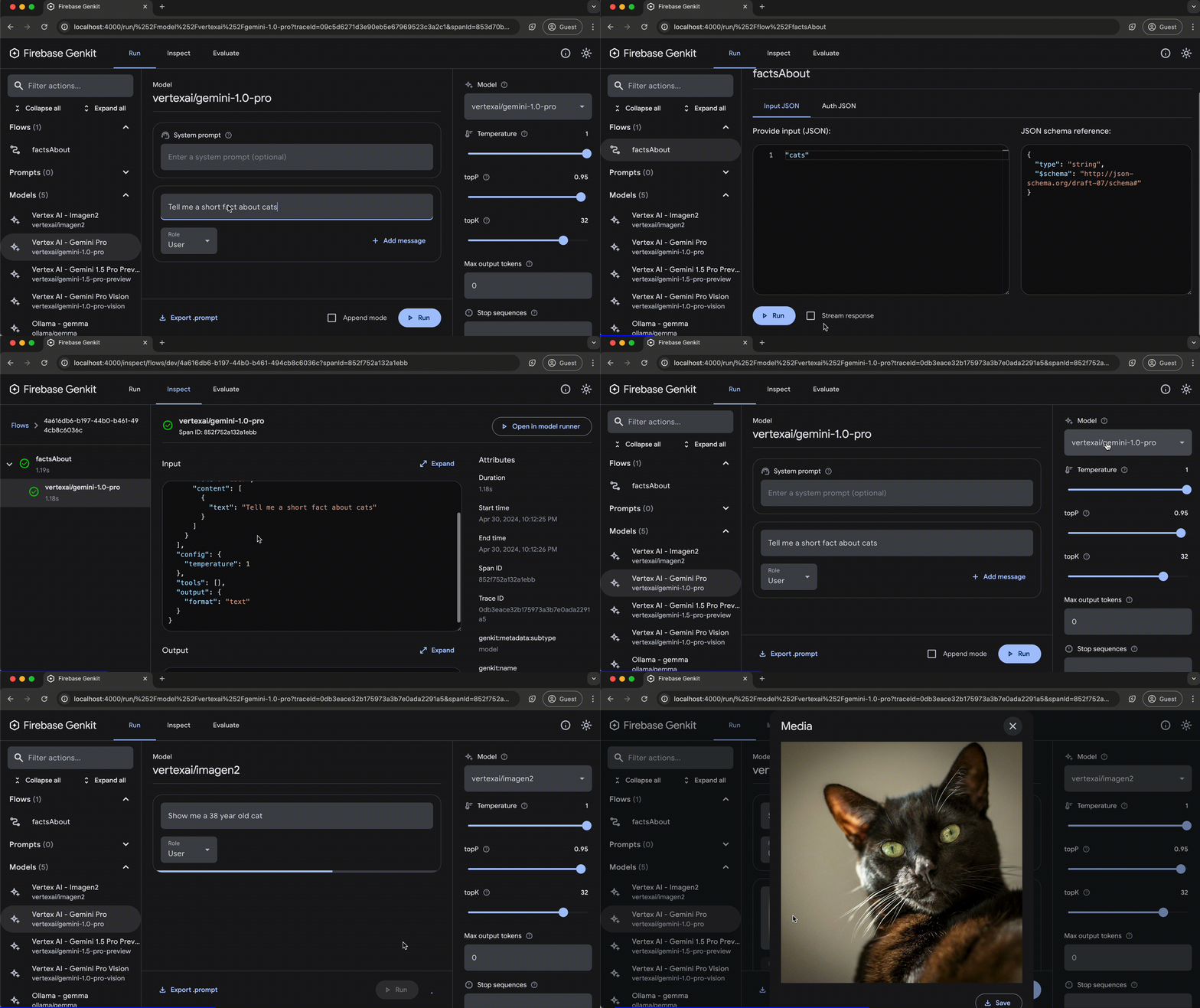
Here’s a quick gif tour with cats.
Alongside each trace, the Developer UI lists the log records the run produced,
against the span that emitted them, including anything your flow logged through
the Genkit logger from genkit/logging. Records stream from an app started
with genkit start without any code change. Only records at or above the
logger’s level are sent, info by default; call logger.setLogLevel('debug')
to include debug records.
Run the reflection API outside dev
Section titled “Run the reflection API outside dev”The CLI and the Developer UI talk to your app through the reflection API, an
HTTP server that genkit() starts in the background. By default it runs only
under GENKIT_ENV=dev, which genkit start sets, and listens on 127.0.0.1,
on port 3100 or the first free port above it.
To run it in another environment, for example a staging deployment that your own tooling inspects, turn it on explicitly:
GENKIT_REFLECTION_ENABLED=true \GENKIT_REFLECTION_HOST=0.0.0.0 \GENKIT_REFLECTION_PORT=3100 \GENKIT_REFLECTION_SECRET_TOKEN="$(openssl rand -hex 32)" \node lib/index.js| Variable | Effect |
|---|---|
GENKIT_REFLECTION_ENABLED | true runs the reflection API in any environment. false turns it off, even under dev. Unset, it runs only under GENKIT_ENV=dev. Any other value makes genkit() throw. |
GENKIT_REFLECTION_HOST | The interface to listen on. Defaults to 127.0.0.1. |
GENKIT_REFLECTION_PORT | The exact port to listen on. 0 lets the operating system pick one. Unset, the server tries 3100 and then the ports above it. The server starts in the background, so a port it cannot bind surfaces as an unhandled FAILED_PRECONDITION rejection, which stops Node.js by default. When the reflection API is on, a value that is not an integer from 0 to 65535 makes genkit() throw. |
GENKIT_REFLECTION_SECRET_TOKEN | A secret that every request must send in the x-genkit-reflection-secret header. Requests without it get 401. /api/__health stays open, so health checks work without the secret. |
The host, port, and secret are settings, not switches: none of them turns the
reflection API on by itself. To set the port in code, use the reflectionPort
option:
const ai = genkit({ plugins: [googleAI()], reflectionPort: 3200, // Exact. 0 lets the operating system pick.});GENKIT_REFLECTION_PORT takes precedence over the option, and the option does
not turn the reflection API on.
Under dev, the app also writes a discovery file to .genkit/runtimes/ in your
project root, so that a CLI process that did not start the app, such as
genkit ui:start or genkit mcp, can find it. It includes the secret when one
is set, so only its owner can read it. Outside dev, no file is written.
Analytics
Section titled “Analytics”The Genkit CLI and Developer UI use cookies and similar technologies from Google to deliver and enhance the quality of its services and to analyze usage. Learn more.
To opt-out of analytics, you can run the following command:
genkit config set analyticsOptOut trueYou can view the current setting by running:
genkit config get analyticsOptOut